
Disclosure: This site may contain affiliate links. If you make a purchase through these links, I may receive a commission at no additional cost to you. However, all opinions are my own.
This hands-on guide is built for micro-businesses, small e-commerce store owners, webmasters, and students — anyone who tracks their budget and refuses to spend hundreds of euros on overkill infrastructure.
Let’s set expectations right away: you cannot run a heavy large language model on low-end hardware and expect instant responses. If real-time speed is critical for your project (e.g., live customer support chatbots on your site), don’t compromise — go straight for dedicated GPU Hosting and AI Servers (production-ready configurations typically start at €300/month).
However, small businesses face plenty of tasks where instant speed isn’t required. Generating reports, analyzing sales data, processing structured data, or automating routine workflows can all be queued for background execution. Below, we’ll walk through deploying a local Ollama server on a standard non-GPU VPS to handle these workloads efficiently without unnecessary costs.
Why Run Self-Hosted AI in the First Place?
A reasonable question arises: why set up a model on a VPS when ChatGPT, Claude, Gemini, and dozens of cloud AI APIs are readily available?
The primary advantage of running on your own infrastructure (an office PC or a VPS) is control. Most server-side AI tasks don’t require writing novels or solving math olympiad problems. For a 1 vCPU / 4 GB RAM VPS, the goal is different: leverage tiny quantized models for background automation.
When using a local model, the request flow looks like this:
user → my server → Ollama → local modelYou don’t need to send every request to an external AI provider. This unlocks several key advantages:
You can process private data, build internal tools, automate text processing, classify dataset items, or execute thousands of small AI tasks without paying per API call to an external vendor. Autonomy: it allows you to run AI locally on edge devices (smartphones, POS terminals, kiosks) without relying on a constant cloud connection.
At the same time, a local model doesn’t have to replace ChatGPT or Claude completely. In practice, a hybrid architecture is much more practical:
- Simple task → local model
- Complex task → cloud model
For example, a local model can handle text classification, language detection, tag generation, entity extraction, short summaries, data normalization, and text-to-JSON conversion. Meanwhile, complex analytical tasks can still be routed to a powerful cloud LLM. This exact scenario makes lightweight local models particularly attractive.
Practical Scenario and Real-World Example (Live Demo)
Most server-side AI tasks don’t require writing novels or advanced reasoning. For small businesses and web projects, background automation boils down to hundreds of small, repetitive routines.
Background Worker: Processing a Task Queue
Imagine a content platform that processes 500 items daily (articles, products, or incoming messages). For each item, you need to:
- Detect the language of the text.
- Assign the correct category.
- Extract key entities.
- Generate 5 meta tags.
- Return the result in strict JSON format.
If these operations don’t require real-time feedback (no user is waiting for a browser page reload), the server can process the queue asynchronously throughout the day. At a generation speed of 15–20 tokens per second on 1 vCPU, a tiny model will easily process the entire workload. That is why a low-cost VPS isn’t a “bad PC for ChatGPT,” but a fully capable AI worker for background tasks.
In return, you get:
- Zero execution cost: No per-request API fees to OpenAI or Claude.
- Data Privacy: Sensitive business data never leaves your VPS.
- Vendor Independence: No rate limits, GEO restrictions, or sudden policy changes from cloud providers.
Real-World Live Case: Interactive DevOps Excuse Generator
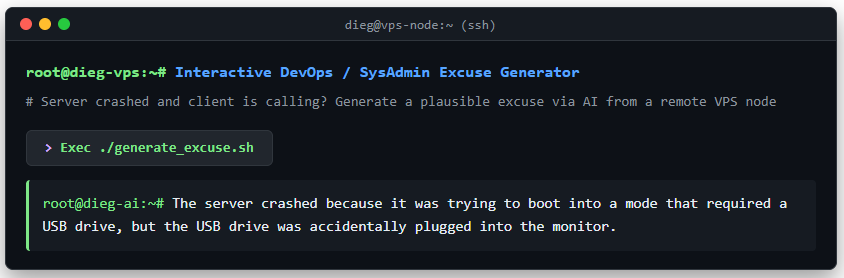
To demonstrate this concept in action, I integrated a microservice based on this setup directly on the homepage of dieg.net.
How it works architecturally:
- When clicking the interactive button, the client-side frontend sends an AJAX request to the site backend.
- The backend proxies the request over an encrypted HTTPS connection (secured via Nginx Basic Auth) to Ollama on an isolated 1 vCPU / 4 GB RAM VPS.
- The
Qwen3 1.7Bmodel, running with thinking mode disabled (--think=false), generates a humorous reason why the server crashed or froze in real-time. - The response is delivered back to the user within 1.5–2 seconds in plain text format.
This live example proves that even a cheap $5–7/month VPS can power interactive public microservices without overloading the main website stack.
What is Ollama and How Does It Differ From an AI Model?
When discussing self-hosted AI, Ollama comes up almost immediately. At first glance, it might seem that Ollama is just another neural network like ChatGPT, Qwen, or Gemma. In reality, they are fundamentally different things.
Ollama ≠ AI Model.
Ollama is not a large language model. It is a software framework designed to download, run, and manage AI models on your own hardware. To draw an analogy with a standard web server: the model is the data and algorithm, while Ollama is the infrastructure layer that allows you to deploy that model easily and query it via an API. Ollama can be installed on Linux, Windows, and macOS.
What Ollama Actually Does
A large language model itself is a collection of weights ranging from hundreds of megabytes to dozens or even hundreds of gigabytes. Downloading the file is not enough. You need an inference engine — software that loads the model into memory, executes computations, and returns results.
In simplified terms, the architecture looks like this:
Your Site / App / Script → API → Ollama (Engine) → Qwen/Gemma Model → CPU / GPUTherefore, “installing Ollama” and “installing the Qwen model” refer to two distinct actions. Here: Ollama is the runtime software managing models and their execution, while Qwen is Alibaba’s model family. You can swap Qwen for any other supported model without changing Ollama itself. Once launched, Ollama acts as a local AI service accessible by applications. This allows you to integrate models into websites, CMS platforms, internal tools, Telegram bots, or custom automation pipelines.
How It Works Under the Hood
The command ollama ps displays only the models currently loaded into system memory (RAM) actively processing a request.
- Idle Mode: When there are no incoming requests, Ollama runs as a lightweight background daemon, consuming minimal system resources. The
qwen3:1.7bmodel itself is unloaded from RAM and stays on disk. - Incoming Request: As soon as an API call arrives from your application, Ollama instantly loads
qwen3:1.7bfrom disk into RAM. At this point (during token generation), runningollama pswill list the model as active. - Automatic Unload: After generating and returning the response via API, Ollama keeps the model in memory for 5 minutes (default timeout) before unloading it to free up RAM.
You can verify this yourself. Open two terminal windows. In the first, run: watch -n 1 ollama ps. In the second, send a cURL request. You will see the model appear in the process list during generation and disappear shortly after. This is a crucial feature for a 1 vCPU / 4 GB RAM VPS: you don’t need to keep a heavy model permanently locked in RAM.
Commands to Manage the Ollama Service
- Restart Ollama:
systemctl restart ollama - Check Ollama status:
systemctl status ollama - View active models in RAM:
ollama ps - List downloaded models and disk sizes:
ollama list - Remove a model:
ollama rm qwen2.5:3b
Tested VPS Providers
| Provider | CPU | RAM | Disk |
|---|---|---|---|
| Aeza | 1 vCPU, AMD Ryzen 9 5950X @ 3.39 GHz | 4 GB | 10 GB |
| AlexHost | 2 vCPU @ 2.30 GHz, QEMU Virtual CPU | 4 GB | 40 GB |
| AMHG | 2 vCPU, QEMU Virtual CPU 2.5+ GHz | 4 GB | 77 GB |
All test servers used KVM virtualization, Ubuntu 24.04 LTS (x86-64), non-GPU setup (GPU Hosting), and no configured swap. System data was gathered using my custom bash ai-vps-check script.
| Parameter / Test Metric | Aeza | AlexHost | AMHG |
|---|---|---|---|
| CPU — processor reported by the VPS | AMD Ryzen 9 5950X | QEMU Virtual CPU 2.5+ | QEMU Virtual CPU 2.5+ |
| vCPU — available execution threads | 1 | 2 | 2 |
| RAM — total installed memory | 3.8 GiB | 3.8 GiB | 3.8 GiB |
| Available RAM — memory free for models at benchmark time | 3.5 GiB | 2.7 GiB | 2.2 GiB |
| Swap — fall-back memory space | None | None | 1.4 GiB |
| AVX — CPU vector instruction set extension | Yes | No | Yes |
| AVX2 — advanced SIMD instructions for CPU inference | Yes | No | Yes |
| FMA — fused multiply-add acceleration | Yes | No | Yes |
| F16C — half-precision floating-point conversions | Yes | No | Yes |
| AVX-512 — extended SIMD instruction set | No | No | Yes |
| Free Disk — storage available for models | 6.1 GB | 30 GB | 59 GB |
| Steal time* — CPU cycles stolen by hypervisor | 0% | 7.7% | 0% |
* Steal time (st) — the percentage of time a virtual CPU is ready to execute tasks, but the host hypervisor fails to allocate CPU cycles to it. Sustained values above 10% are a clear signal to open a support ticket with your hosting provider.
Key Metrics to Consider When Selecting a VPS
Our benchmark revealed that the raw vCPU count is a misleading metric when choosing a VPS for AI workloads. Two virtual cores can perform significantly slower than a single core if backed by a weaker CPU, if the hypervisor disables vector instructions, or if the host node suffers from noisy neighbors.
First, verify the exact CPU model exposed to the instance and confirm that AVX, AVX2, and FMA flags are enabled. The llama.cpp engine (which powers Ollama under the hood) relies heavily on SIMD optimizations found in modern x86 hardware. Thus, AVX, AVX2, and FMA support is essential for non-GPU LLM inference.
Be cautious if the provider presents a generic CPU model like “QEMU Virtual CPU”, especially when AVX/AVX2 extensions are missing. This does not necessarily mean the physical processor is ancient: providers often pass down generic CPU flags to ensure easy live migration between host nodes. However, for self-hosted AI, what matters is the specific feature set exposed directly to your virtual machine.
When selecting a VPS for self-hosted AI, prioritize metrics in this order: Sufficient RAM → Modern CPU with AVX2/FMA → Low and stable steal time → Single-core performance → vCPU count.
RAM capacity acts as the primary filter: the model weights alongside working buffers must fit into RAM completely. If memory is insufficient, all other specs become irrelevant. Once RAM requirements are satisfied, prioritize single-core performance and vector instruction sets over raw core counts. Our tests proved that one fast, modern vCPU outperforms two throttled virtual cores for small LLM inference.
In our benchmarks, the performance gap was massive. A VPS with 1 vCPU (AMD Ryzen 9 5950X) with active AVX2/FMA extensions completed 10 concurrent Qwen3 1.7B requests in 2:09. A VPS with 2 vCPUs running a generic QEMU CPU without AVX/AVX2/FMA required 15:18 — nearly 7 times longer. During the test, llama-server fully maxed out both vCPUs while steal time spiked to ~25%. This 7x difference was driven by a combination of CPU architecture, instruction extensions, and hypervisor resource contention.
VPS Benchmarking Methodology
To benchmark performance across 10 concurrent requests (adjust {1..10} to test different concurrency levels), use the following bash snippet:
time (
  for i in {1..10}; do
    curl -s http://127.0.0.1:11434/api/generate \
      -d '{
        "model":"qwen3:1.7b",
        "prompt":"Suggest 3 domain names for a coffee shop using Latin characters.",
        "stream":false,
        "think":false
      }' > /tmp/ollama-$i.json &
  done
  wait
)
The command will output timing details:
real    0mXX.XXXs
user    ...
sys     ...
Focus on the real time metric.
To monitor RAM consumption during execution, open a second SSH session and run:
watch -n 0.5 'ps -eo pid,comm,%cpu,%mem,rss --sort=-rss | head -10'RSS represents actual physical memory usage in KiB. Alternatively, launch `top` to keep an eye on overall CPU usage, memory consumption, and the `st` (steal time) metric.
Comparison Matrix: Selecting the Right Model for Your VPS
Instead of calculating memory bounds manually, let’s review which models actually run reliably on budget hardware (1 vCPU, 4 GB RAM).
The key lies in quantization — a model compression technique that makes neural networks lighter (specifically the Q4_K_M format). While baseline accuracy drops slightly, it enables LLMs to run efficiently on standard CPUs.
Executing ollama list displays the footprint of downloaded models. For example: NAME: qwen3:1.7b | SIZE: 1.4 GB. Remember that beyond this 1.4 GB disk footprint, models require additional system RAM for context buffers (KV cache) during execution.
Model selection matrix:
| Model | Parameters | Disk Size (Q4 Quantization) | RAM Requirements | VPS Verdict (1 vCPU / 4 GB RAM) |
| Qwen 2.5 / 3 (7B-8B) | 7–8 Billion | ~4.7 – 5.2 GB | 8+ GB | ❌ Out of memory. |
| Qwen 3 (4B) | 4 Billion | ~2.5 GB | ~4 GB | ⚠️ Borderline. Runs, but system will experience severe throttling. |
| Qwen 2.5 (3B) | 3 Billion | ~1.9 GB | ~3 GB | ✅ Good option if OS background overhead is low. Excellent multilingual capabilities. |
| Qwen 3 (1.7B) | 1.7 Billion | 1.4 GB | ~2.5 GB | 🔥 Ideal! Best balance of generation speed and output quality for background jobs. |
| Gemma 3 (1B) | 1 Billion | <1 GB | ~1.5 GB | ✅ Fast and lightweight candidate. |
| Qwen 3 (0.6B) | 0.6 Billion | ~523 MB | ~1 GB | ✅ Ultra-lightweight. Best for basic categorization and tagging routines. |
Takeaway: On a 4 GB RAM server, stick to quantized models under 3 billion parameters (3B). Leave larger variants (7B, 14B) for dedicated GPU environments.
10-Minute Deployment Guide (No Docker) Optimized for 1 vCPU
VPS Stack: Ubuntu 24.04 + Ollama + Nginx + SSL + Auth + IPv4/IPv6 support.
Install Ollama:
# curl -fsSL https://ollama.com/install.sh | shYou will see a notice: WARNING: No NVIDIA/AMD GPU detected. Ollama will run in CPU-only mode. This is expected.
Download the base Qwen3 1.7B model:
ollama pull qwen3:1.7bTest the model directly from the CLI:
ollama run qwen3:1.7b "Hi, suggest 3 domain names for a coffee shop"

Thinking...
Ollama exposes a local REST API on port 11434. You can pass JSON payloads directly from your PHP or JS applications.
~# lsof -i:11434
COMMAND  PID   USER   FD   TYPE DEVICE SIZE/OFF NODE NAME
ollama  2406 ollama    3u  IPv4  25832      0t0  TCP localhost:11434 (LISTEN)
Non-Thinking Mode: Disabling Reasoning Blocks
To ensure immediate responses, disable the chain-of-thought (reasoning) output. Ollama natively supports disabling reasoning blocks via the --think=false flag:
ollama run qwen3:1.7b --think=false "Hi, suggest 3 domain names for a coffee shop"Reasoning blocks help with complex logic, but introduce two major drawbacks for routine backend tasks:
- API Payload Pollution: Reasoning blocks are returned in the final API response, breaking JSON parsing in backend scripts.
- Unnecessary CPU Overhead: The model spends up to 80% of its compute time generating internal monologues (
Thinking...) rather than producing output. On a 1 vCPU instance, this adds 10–15 seconds of latency.
Non-thinking mode is essential for production tasks such as classification, translation, entity extraction, and structured data generation. Reserve thinking mode for complex logical reasoning or code generation.
Is a Swap File Necessary for AI Workloads?
Swap memory cannot replace physical RAM and is unnecessary for LLM execution as long as the model fits within native VPS RAM. In fact, relying on swap degrades generation speeds drastically due to disk I/O bottlenecks.
In our tests, Qwen3 1.7B ran smoothly on a 4 GB RAM VPS without swap. Treat swap purely as an emergency buffer to prevent Out-Of-Memory (OOM) kernel panics, not as extra memory for running oversized models.
Securing Ollama: Hardening Remote Access to Your AI Server
Why exposing Ollama directly is unsafe:
- Unencrypted HTTP Traffic: Binding Ollama directly to port
11434on a public IP transmits prompts, API keys, and responses across the internet without SSL encryption. - Missing Native Authentication: Ollama lacks built-in authentication (no username/password mechanism out of the box). If firewall rules misconfigure or Docker bypasses UFW iptables chains, port 11434 becomes globally accessible.
If your web apps run on a separate server, exposing Ollama directly on port 11434 without protection turns your server into an open proxy for third parties.
Deploy Nginx as a reverse proxy in front of Ollama. The 1ms proxy overhead is imperceptible compared to the 1.5s model execution time, but you gain full HTTPS encryption, API authentication, and robust connection handling.
Nginx addresses two critical tasks:
- Secures Ollama behind authentication (via secret API tokens passed in `Bearer` headers or Basic Auth).
- Enforces HTTPS (SSL certificates) to secure cross-server communications.
Installing Nginx and Security Utilities
For this walkthrough, I will use ai.dieg.net as the target domain. Replace it with your domain name during setup.
apt update && apt full-upgrade
apt install -y nginx apache2-utils certbot python3-certbot-nginx
Configuring API Authentication (Basic Auth)
Generate a password file. Replace MY_SECRET_KEY with a strong password:
htpasswd -bc /etc/nginx/.ollama_pass api_user MY_SECRET_KEYConfiguring Nginx for Dual-Stack (IPv4 + IPv6)
Remove the default Nginx configuration and create a dedicated configuration file:
rm -f /etc/nginx/sites-enabled/default
nano /etc/nginx/sites-available/ai.dieg.net
Paste the following server block (configured to listen on IPv4 port 80 and IPv6 [::]:80):
server {
    listen 80;
    listen [::]:80;
    server_name ai.dieg.net;

    client_max_body_size 2M;

    location / {
        auth_basic "Ollama Restricted API";
        auth_basic_user_file /etc/nginx/.ollama_pass;

        proxy_pass http://127.0.0.1:11434;

        proxy_set_header Host 127.0.0.1;
        proxy_set_header X-Real-IP $remote_addr;
        proxy_set_header X-Forwarded-For $proxy_add_x_forwarded_for;
        proxy_set_header X-Forwarded-Proto $scheme;

        proxy_buffering off;
        proxy_read_timeout 300s;
        proxy_connect_timeout 75s;
    }

    location ~ /\. {
        deny all;
    }
}
Provisioning a Free Let’s Encrypt SSL Certificate (HTTPS)
Run Certbot to issue a Let’s Encrypt SSL certificate and configure automatic HTTP-to-HTTPS redirects:
certbot --nginx -d ai.dieg.netCertbot will update the Nginx configuration automatically, bind SSL certificates, and configure listening directives for port 443 (IPv4) and [::]:443 (IPv6).
Enable the site and test the configuration syntax:
ln -s /etc/nginx/sites-available/ai.dieg.net /etc/nginx/sites-enabled/
nginx -t
systemctl restart nginx
Verifying Remote Access (IPv4 & IPv6)
You can now send requests to https://ai.dieg.net securely using your authentication credentials. To verify, open your domain in a browser; after passing authentication, it should display: “Ollama is running”.
Verify execution over IPv4 (swap `-4` for `-6` to test IPv6 connectivity):
curl -4 -u api_user:MY_SECRET_KEY https://ai.dieg.net/api/generate -d '{
  "model": "qwen3:1.7b",
  "prompt": "Suggest 3 short domain names for a car wash",
  "system": "You are a concise domain name generator. Do not think, output result immediately.",
  "stream": false,
  "think": false,
  "options": {
    "num_predict": 100,
    "temperature": 0.5
  }
}'
If both cURL commands return valid JSON from Ollama, your stack (Ubuntu 24.04 + Ollama + Nginx + SSL + Auth + Dual-Stack Networking) is configured and ready for production API calls over IPv4 and IPv6.
{"model":"qwen3:1.7b","created_at":"2026-08-31T08:20:01.573479175Z","response":"AutoMoyi, MyAuto, AutoMoy","done":true,"done_reason":"stop","context":[151644,8948,271,2610,525,264,63594,7947,829,13823,13,3155,537,1744,11,2550,1102,7069,13,151645,198,151644,872,198,16854,42975,81841,1802,220,18,66869,13039,16748,10474,126711,50312,19849,125347,16339,16748,608,2152,5854,766,151645,198,151644,77091,198,151667,271,151668,271,13253,44,2253,72,11,3017,13253,11,8979,44,2253],"total_duration":1546735819,"load_duration":1434124,"prompt_eval_count":53,"prompt_eval_duration":140739000,"eval_count":12,"eval_duration":1396932000}The response timing on our VPS instance is excellent:
- Execution Speed:
total_durationregistered at 1.5 seconds (1546735819ns) — a strong result for a single vCPU. - Clean Output: The model returned concise string values inside the
"response"field while completely suppressing reasoning blocks. - Resource Utilization: It generated 12 tokens (
eval_count: 12) and immediately released CPU threads back to the system.
Core Optimization: Prompt Engineering
Smaller models do not require fine-tuning, but they depend heavily on strict System Prompts to enforce clean JSON output without conversational fluff:
{
  "model": "qwen2.5:7b",
  "prompt": "You are a branding and domain name expert. Topic: Gym named Stimul, language: English. Suggest 5 creative domain variations using traditional (.com, .net) and TLD extensions (.fitness, .club, .gym). Return the output strictly in JSON format.",
  "stream": false
}
To keep a 3B parameter model focused and prevent hallucinated conversational responses, structure system prompts explicitly:
You are a specialized domain name generator. Your task is to generate 5 short and memorable domain name variations for a project.

Input data: Topic: {input}, Language: {language}

Rules:
1. Include traditional TLDs (.com, .net) as well as niche extensions (.fitness, .online, .store, .tech, .shop).
2. Utilize domain hacks (e.g., word.press, stimul.fitness) where applicable.
3. Omit intro/outro text. Return only the final list of domains alongside a brief explanation of the naming concept.
Automating Service Resilience
The primary risk when running LLMs on 4 GB RAM instances is process termination by the Linux OOM Killer during memory spikes. You don’t need third-party tools like Monit to manage uptime; Systemd’s native auto-restart handles service recovery within 3 seconds.
To configure automatic service recovery for Ollama, edit its service override configuration:
sudo systemctl edit ollamaAdd restart directives under the `[Service]` section:
[Service]
Restart=always
RestartSec=3
Apply the updated service configuration:
systemctl daemon-reload
systemctl restart ollama

systemctl cat ollama # Verify that Systemd loaded the override parameters successfully
Systemd will now automatically restart Ollama in the event of a memory crash or unexpected failure.
Troubleshooting Performance Bottlenecks
When testing prompts, keep an eye on these 3 critical indicators:
| Metric | Bottleneck Cause | Resolution Strategy |
| RAM Utilization | If the model footprint exceeds physical RAM, the OS forces excessive swap paging. Generation speeds stall to ~0.1 tokens/sec. | Switch to a smaller model footprint. Downsize from qwen2.5:3b to qwen2.5:1.5b. |
| CPU Load (100%) | Standard behavior for CPU-bound inference. Focus on optimizing Time to First Token (TTFT). | Restrict the request context window size (num_ctx) in Ollama parameters to 1024 or 2048 tokens. |
| OOM-Killer Invocations | System logs reveal Out of memory: Kill process entries in dmesg outputs. | Ensure a 2 GB Swap file is active as a system guardrail. |
FAQ and Key Terminology
What is a token? Does 1 token equal 1 English word?
A token in AI is not equivalent to a word. Assuming 1 token equals 1 word is a common misconception.
A token is the foundational atomic segment of text processed by a neural network. Its length varies depending on language structures:
- Short English words (e.g., cat, home, run) usually register as a single token.
- Complex or compound words are split into subwords: for example, unbelievable breaks into 3 tokens (un-believ-able).
- Non-English alphabets, punctuation, emojis, and special symbols consume more tokens per word due to multi-byte UTF-8 encoding.
As a general rule: 1 token equals ~3–4 characters (including spaces) in English, and ~1–2 characters in Cyrillic languages.
What is Inference in the Context of LLMs?
Inference refers to the operational phase where a pre-trained model processes incoming input prompts and generates output predictions.
What is Quantization?
Quantization reduces the precision of model weights (e.g., converting 16-bit floats to 4-bit integers) to shrink memory requirements and speed up CPU inference with minimal loss in quality. Example: Quantization compresses model weight footprints by 2x to 4x, allowing them to run on standard hardware rather than expensive server clusters. For structured backend workflows like tagging or summary generation, quality remains consistent, though complex mathematical reasoning can suffer.
Can You Run Ollama on a VPS with 1 CPU and 4 GB RAM?
Yes, but you need to distinguish between two things:
- Running the Ollama runtime — easily supported.
- Running an appropriate model at usable generation speeds — requires careful selection.
Ollama itself consumes minimal resources. System resource utilization is driven by the loaded model weights, context window sizes, and floating-point operations. On a 1 vCPU / 4 GB RAM non-GPU VPS, rule out 7B, 14B, 30B, or 70B models entirely. However, compact model options fit these resource constraints well: Ollama offers Qwen3 variants in 0.6B and 1.7B sizes, while Gemma 3 includes 1B configurations. These small models perform effectively on entry-level cloud servers.
How Much RAM Does an LLM Actually Require?
Memory demand always exceeds raw model weight files: beyond OS overhead and Ollama daemons, the KV cache (which retains conversation context and attention states) grows significantly with context length (32K/128K). On a 4 GB RAM instance, limit context window allocations (e.g., 2K–4K tokens). Even with a lightweight model footprint, execution speed on 1 vCPU will be bottlenecked by floating-point throughput, making it suitable for asynchronous background workers rather than low-latency live chat interfaces.
- KV Cache Mechanics: During token generation, Key-Value tensors from preceding tokens are retained in memory to prevent recalculating attention across the prompt history. Memory consumption scales linearly with context window depth, model layer depth, and attention head counts.
- Safe Configuration Threshold: On a 4 GB VPS hosting a ~2 GB model, cap the
num_ctxparameter in Ollama at 2048–4096 tokens to avoid triggering system OOM crashes. - Compute Constraints: A single virtual core hits FLOPS throughput ceilings, shifting workload characteristics toward queued background tasks.
How Much Text Actually Fits into a 32K Context Window (32,000 Tokens) Across English, Portuguese, Russian, and Ukrainian?
Context windows are measured in tokens rather than word counts. Tokenizer structures and alphabet encoding differences result in varying text capacities across languages:
- English: ~24,000 words (~50 A4 pages). Most common English words map to 1 token. As the primary pre-training language for most LLMs, English vocabulary coverage is highly optimized in tokenizer dictionaries.
- Portuguese: ~20,000–22,000 words (~40–45 A4 pages). Words average 1.4–1.6 tokens each. While Latin characters give Portuguese an advantage over Cyrillic scripts, special characters (
ã,ç,é), diacritics, and verb inflections cause tokenizers to split words slightly more frequently than in English. - Russian: ~12,000–16,000 words (~25–30 A4 pages). Cyrillic text uses multi-byte UTF-8 encoding and is routinely split into subwords, suffixes, and word endings. Consequently, 1 Russian word averages 2.0–2.5 tokens.
- Ukrainian: ~12,000–15,000 words (~25–30 A4 pages). Words average 2.0–2.6 tokens each. Ukrainian tokenizer efficiency mirrors Russian due to shared Cyrillic encoding. In modern architectures with expanded vocabularies (e.g., Llama 3, Qwen 2.5), unique characters (
є,ї,і,ґ) are handled cleanly, resulting in minor tokenization overhead (3–5%) compared to Russian.
Why avoid allocating full 32K context windows on a 4 GB RAM VPS? Loading 25–50 pages of context into memory places high demands on system RAM for the KV cache:
- Memory Exhaustion: Allocating a 32K context KV cache requires 2 GB to 4 GB of RAM beyond base model weights, triggering Out-Of-Memory system crashes.
- CPU Bottlenecks: On a single vCPU thread, prefilling a 32K prompt window introduces significant processing latency.
What is a safe context size for budget VPS instances? The optimal threshold for a 4 GB RAM VPS is 2048–4096 tokens (num_ctx). This accommodates 3–6 pages of input text — more than enough for background automation routines — while ensuring memory stability.
Is Ollama Like Docker for AI Models?
This comparison helps explain the concept high-level, though technically distinct. Docker containerizes application software. Ollama standardizes deployment workflows for machine learning models:
ollama pull ...
ollama run ...
ollama list
ollama rm ...
It abstracts model acquisition, execution engine configurations, and operational parameters behind unified CLI commands.
A precise technical definition:
Ollama is a model manager, inference runtime, and API server for local AI deployment.
Is LocalAI an Alternative to Ollama?
LocalAI is a local AI infrastructure framework providing API compatibility with OpenAI and Anthropic specifications. It supports multi-backend architectures across various machine learning modalities beyond text generation. LocalAI has evolved into a comprehensive platform supporting numerous execution backends and model types.
This flexibility comes with trade-offs in complexity.
If your requirement is:
“I need a lightweight, local LLM API daemon,”
Ollama is simpler to set up and manage.
If your requirement is:
“I am building an all-in-one self-hosted AI backend supporting multimodal tasks and drop-in API compatibility,”
LocalAI becomes a strong candidate.
Can You Run Local AI Without Ollama?
Yes, Ollama is not mandatory. You can run native C++ engines like llama.cpp directly or use specialized inference servers such as vLLM, TGI (Text Generation Inference), or LocalAI. For maximum throughput and lower latency, bare-metal llama.cpp, vLLM, or TGI offer refined control over compute and memory resources. Ollama simply acts as a user-friendly abstraction wrapper around underlying C++ inference runtimes.
What is Ollama Cloud? When Should You Use It, and What Does It Cost?
Running high-parameter models locally (e.g., 70B+ variants) requires substantial hardware resources that standard desktop computers or budget VPS instances cannot accommodate.
Ollama Cloud bridges local developer workflows with managed cloud compute infrastructure:
- Lightweight requests execute locally on your physical machine or VPS free of charge.
- High-parameter queries route upstream to managed GPU clusters. Note that dynamic fallback switching requires middleware like LiteLLM, as stock Ollama does not evaluate VRAM headroom to automatically route requests upstream.
Ollama Cloud Pricing Breakdown:
- Local Deployment: 100% Free.
- Cloud Free Tier: Free tier with rate limits for testing and prototyping.
- Cloud Pro / Max: Paid tiers (starting at $20/month) for persistent high-throughput GPU allocations without rate restrictions.
Configuring Ollama to Accept External Origins (CORS)
By default, Ollama accepts incoming calls strictly from `localhost`. To allow reverse proxy handling across external domain endpoints, define the `OLLAMA_ORIGINS=”*”` environment variable. Open the service editor:
sudo systemctl edit ollamaAdd the environment variables inside the configuration override block:
[Service]
Environment="OLLAMA_ORIGINS=*"
Environment="OLLAMA_HOST=127.0.0.1:11434"
Reload and restart the system service:
systemctl daemon-reload
systemctl restart ollama







The focus on running Ollama on a non-GPU VPS is especially useful for small businesses that need a private assistant without paying for unnecessary hardware. I also appreciate the realistic warning that low-end servers cannot handle heavy models well—choosing a smaller model and setting expectations around speed is essential.
The focus on running Ollama affordably on a non-GPU VPS is especially useful for small businesses and students trying to avoid unnecessary infrastructure costs. I also appreciate the realistic warning that low-end hardware cannot handle heavy large language models well.
The focus on matching model size to a non-GPU VPS is especially practical—small businesses often need a useful assistant, not an oversized model that exhausts their server’s RAM. The cost-conscious approach makes Ollama feel much more accessible for students and small e-commerce owners.