

Afina Review – An Anti-Detection and Automation Platform with No Limits
Free
🔥 Only 98 spots left! Free Afina Browser Premium version ⚡️ Get your free trial.
Afina combines anti-detect, automation, and development into a single product — no workarounds or third-party services needed.
Description
Disclosure: This site may contain affiliate links. If you make a purchase through these links, I may receive a commission at no additional cost to you. However, all opinions are my own.
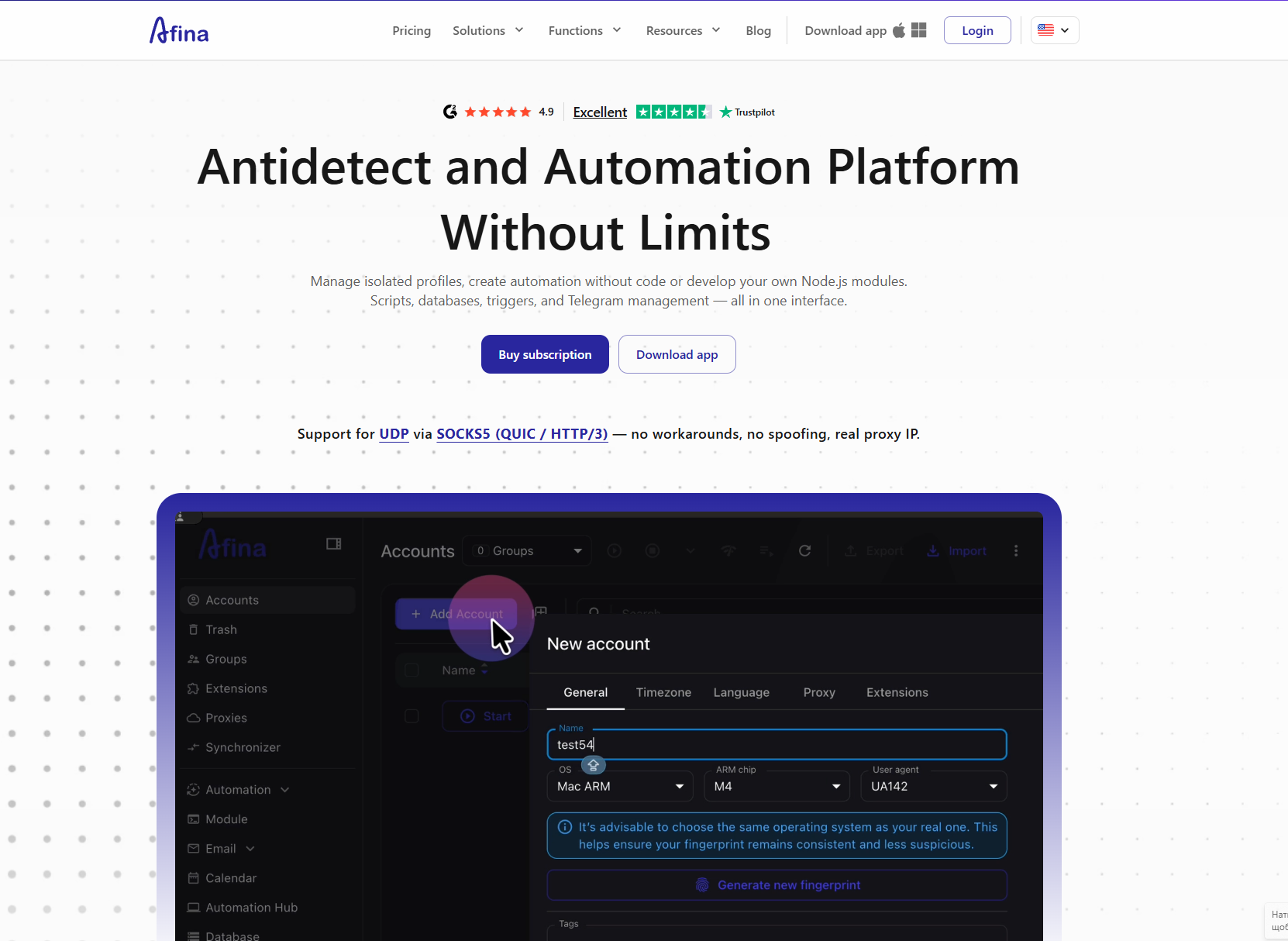
If you are just getting acquainted with anti-detect browsers, the first launch of a new tool always raises a dozen questions: where to click, how to set up a digital fingerprint, where to enter proxies, and why accounts might suddenly get banned. This guide will answer all your questions regarding Afina Browser and lead you from downloading the installer to launching your very first script.
We will go through the entire journey together: install the software, create the first profile with a unique fingerprint, connect a proxy, and set up automation. Everything is laid out as practically as possible, without unnecessary theory, so you can repeat each step right on your screen.
What is Afina Browser
Afina is an anti-detect browser that allows you to work with multiple accounts from a single device in such a way that websites see them as separate, independent browsers running on different computers. Instead of keeping dozens of tabs open in a regular browser, you create separate profiles, each having its own digital fingerprint, proxy, and saved cookies.
The core idea of the anti-detect approach is simple: websites recognize a user not only by their login details but also by the technical parameters of the browser, which make up the digital fingerprint. Afina manages these parameters for you.
- Profile isolation: data from one account never overlaps with others.
- Unique fingerprint generation: adding noise to Canvas, WebGL, Audio, and Rects.
- Support for various proxy types: binding a profile to your required geolocation.
- Built-in automation: an automation center and ready-made scripts.
Simply put, Afina takes care of the technical routine while you focus on directly working with your accounts.
Who is it for
An anti-detect browser is not needed by everyone, but there are many scenarios where it makes life noticeably easier. Most often, Afina is chosen by those who work with multiple accounts daily and want to keep them in perfect order:
- media buyers and marketers running multiple ad accounts;
- SMM specialists with dozens of social media accounts;
- teams that need to separate access between employees;
- everyone who automates routine browser actions using scripts.
If you recognized your situation in at least one of these points, then the following steps are written specifically for you.
Step 1. Installation and Registration
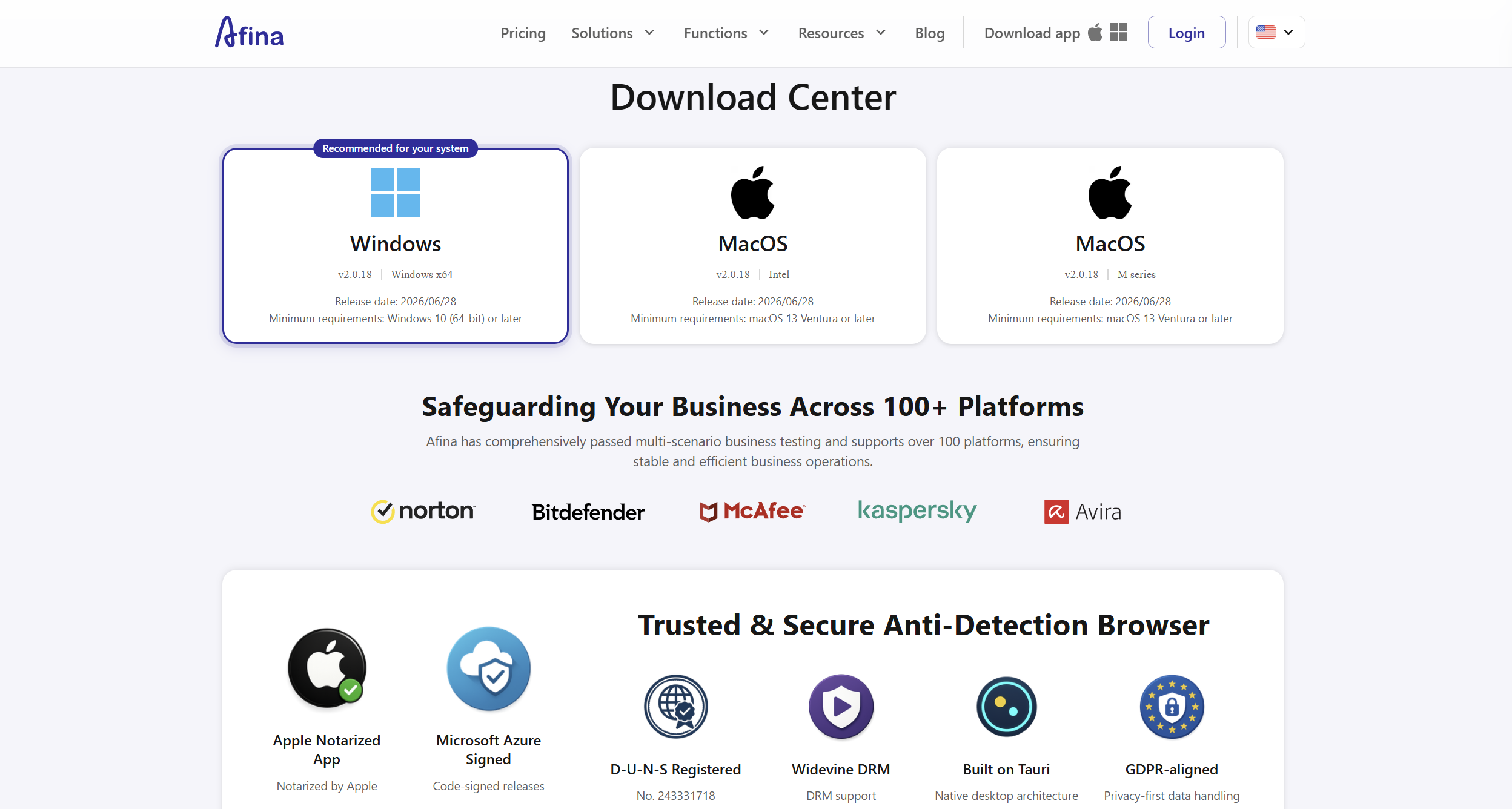
Let’s start with the simplest part: installing the software on your computer. Afina runs on Windows 10 and 11, as well as macOS (separate builds are available for Intel and Apple Silicon processors), so make sure to download the file corresponding to your system. A detailed description of each stage is available in the installation guide.
The process itself takes a few minutes and does not require any special skills:
-
- Go to the download page and download the file for your OS.
- Open the installer and keep the default installation path.
- Launch the program and complete the registration: enter your email, verification code, Telegram, Discord, and password.
- Upon your first login, click “Connect Telegram” to receive +7 bonus days of license.
After these actions, you will already have a working account and some extra time to explore the tool, thanks to the bonus days.
Step 2. Creating a Profile and Digital Fingerprint
Now let’s move on to the core of working with an anti-detect: creating your first profile with a unique fingerprint. Everything is configured in a single window, so you won’t have to look for options in different menus. If you want to study each field in more detail, visit the page dedicated to account creation.
Follow these actions in order:
- Open the “Accounts” section and click “Add account”.
- In the “General” tab, fill out the “Name” field so the profile is easy to recognize.
- Select your actual operating system, as a mismatch in system fonts can give away the use of an anti-detect browser.
- Click “Generate new fingerprint”, and Afina will automatically select the parameters and noise for Canvas, WebGL, Audio, and Rects.
- In the “Timezone” tab, leave the value as “Timezone from IP”.
- In the “Language” tab, leave it as “Languages from IP”.
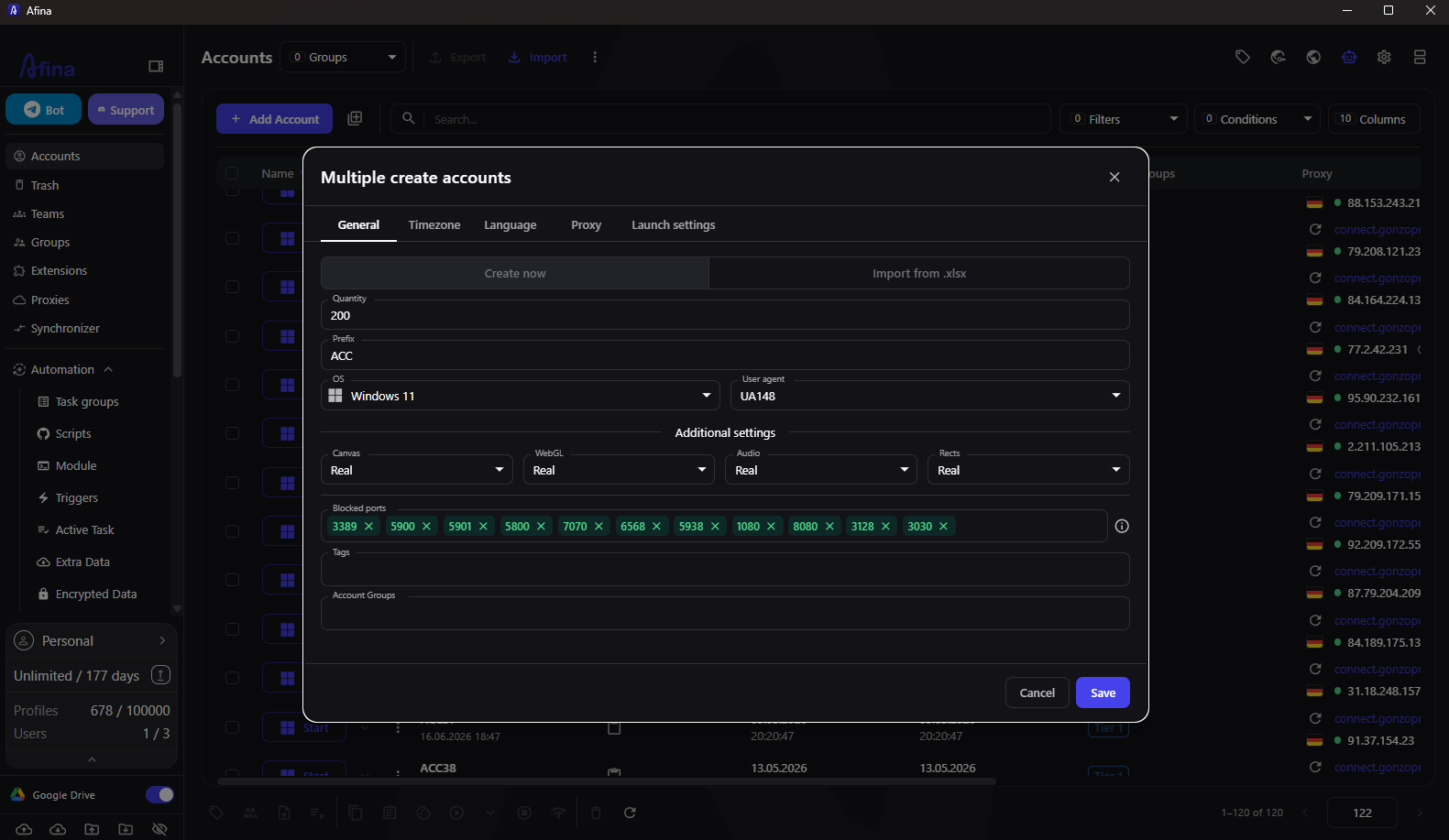
As a result, you will get a profile where the technical parameters are consistent with each other, and the timezone and language will be automatically pulled from the future proxy.
Step 3. Adding a Proxy
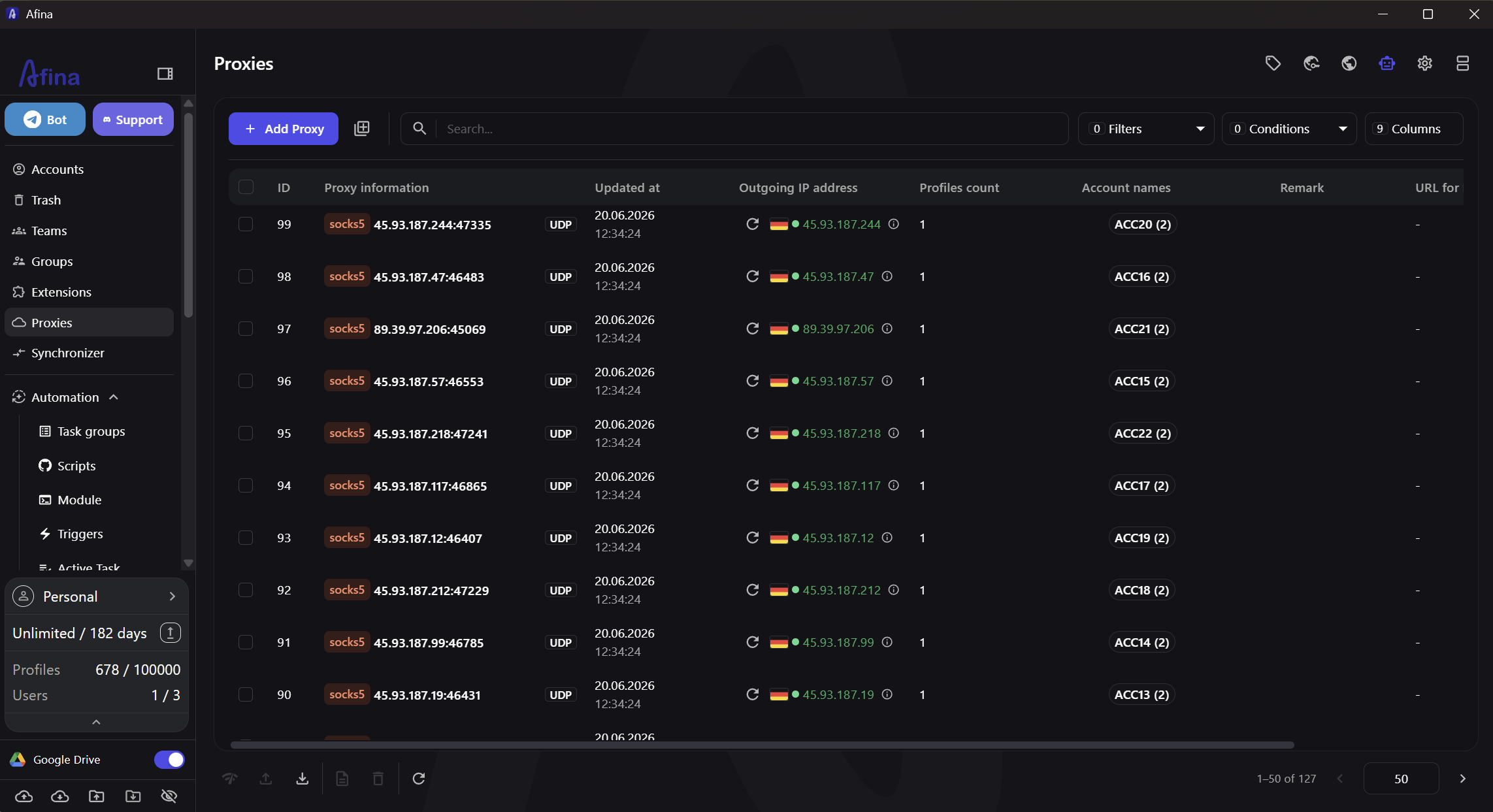
The profile is ready, but without a proxy, all your accounts will access the internet from the exact same IP address, which completely negates all isolation. A proxy binds the profile to your desired geolocation, and it is configured within the same account window.
Go to the “Proxy” tab and complete a few steps:
- Enable the “Set proxy” mode.
- Select the connection type: HTTP, SOCKS5, or HTTPS.
- Fill in the “Host”, “Port”, “Login”, and “Password” fields.
- Click on the checkmark icon on the right and wait for a successful status.
- Click “Save”.
If the check passed successfully, the proxy is working, and now the profile will access the network from the exact address you specified.
Step 4. Launching Your First Script
The most interesting part is ahead — automating routine actions. For this, Afina features an Automation Center with ready-made scripts that can be downloaded and assigned to a profile in just a couple of clicks. If you need an advanced breakdown of basic scenarios, take a look at the account creation page.
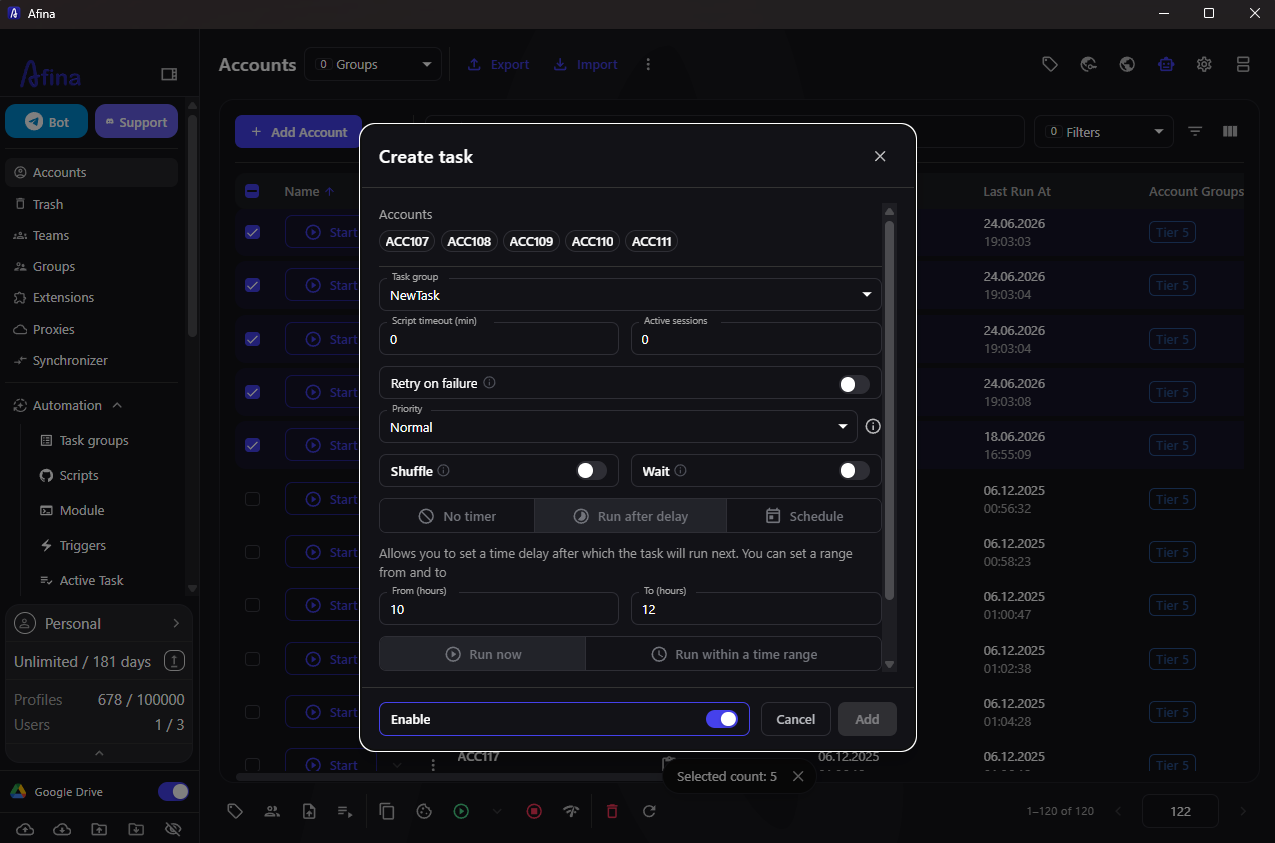
Launching your first script consists of two parts: first, you download the script, and then you assign the task to the profile.
- Open the “Automation Center” in the left panel and find the required script.
- Click “Download” to add it to your scripts.
- Return to the “Accounts” section and check the box next to the desired profile.
- Click the “Set task” icon on the top panel.
- In the “Task group” field, enter a name (at least 3 characters).
- In the “Script” field, select the script you just downloaded.
- Toggle the “Enable” switch and click “Add”.
You will be able to monitor the execution process in the “Active tasks” section, where the status of each task is tracked.
Tips for Beginners and promo codes
The first days of work are usually the most important, as this is when habits are formed that will later either simplify or complicate your life. A few simple recommendations will help you avoid typical mistakes:
- give your profiles clear names so you don’t get confused in the account list;
- always check proxies before saving, rather than after the first problems appear;
- do not change the operating system in the fingerprint after the profile has been created;
- start automation with a single profile before scaling it to all accounts.
These habits will save you time and nerves, especially when the number of accounts starts to grow.
Get a 20% discount on any antidetect browser plan except Max. Paste the code at checkout. ⭐ Read our Afina Browser Review →
More Less Maximum 30% discount on the top-tier Max plan for professional multi-accounting. ⭐ Read our Afina Browser Review →
More LessAfina Contacts
- Website: afina.io
- Company: Afina
- Website language: English, Russian, Ukrainian
Tech support language: English
Technical Support Contact Information
Technical support is available 24/7 via email.
Management:
- Position: Founder and CEO
- Full Name: Sergiy Lykhopud, Mykyta Korniienko
Payment methods: Bank cards (Visa, MasterCard, American Express, Discover), ApplePay, Google Pay, Crypto.
FAQ (Frequently Asked Questions)

Additional information
| Popular Payment Methods: |
|---|







Noah –
I expected moving my accounts to a new browser to take more effort, but Afina’s support team made it straightforward. They replied quickly, explained each step, and helped me get everything transferred without losing any data. Since then, the browser has been running smoothly and has been easy to get used to
Artas –
Got exactly what i need, i dont use more complex features, but it helps me to ease all the grueling job with dozens of differens accounts, what a relief
Puege –
Been using afina for a while and ngl, it made my workflow way less annoying. I usually have a bunch of profiles to deal with, and switching between them used to be a pain in the ass. Now it’s pretty damn straightforward. The API is also handy when I need to hook it up with other tools. Nothing crazy, it just saves me a ton of time.
Helen –
For me, Afina is a practical everyday browser for working with multiple accounts. I use different profiles for different projects and tasks, which makes it easier to switch contexts and keep everything separate
Larry –
What I like best about Afina is that I can easily test different environments without needing a bunch of physical devices. Android mobile profiles are especially useful for checking how websites behave on different devices. I also really like the Software Rendering option because Afina works much smoother on my VPS through RDP when there’s no proper GPU available.
I’m mostly waiting for iOS fingerprints to be added. Android profiles are already really useful for my work, so having iOS fingerprints as well would make testing different mobile environments even more convenient.
Shannon –
One of the Afina features I use almost every day is the built-in Letters section. I work with many email accounts, and before I had to keep several mail clients open just to check verification codes and account messages. Now I can manage all of these inboxes directly inside Afina in one place.
I especially like that each mailbox can use its own proxy, so email traffic stays separated from my real connection. External images are also blocked by default, which is useful for avoiding tracking pixels in emails.
Liudmyla –
best and secure antidetect
Emma –
I exited the new Rust update in Afina. After this version the browser feels much faster, profiles open quicker, and the whole work process became smoother. Before some actions could take a bit more time, but now everything reacts faster and feels more stable. Big thanks to the Afina team for this update, it is a very good step forward